
Research
MOSS-Image text and design test: how to get the words right, and how to edit safely
A menu, event poster or product label has to get the words right and make the information easy to read at a glance. Using 8 everyday scenes and 131 saved original images, this page answers a few practical questions: Is a short prompt enough? How much does automatic expansion help? What should you write to get more designed lettering? And what goes wrong when you change or add text after generation?
The short version:
- For text-heavy images (menus, social graphics, comic dialogue), don’t rely on a one-line prompt. Automatic expansion made them much more readable.
- Put every required title, name, price and date in quotes, exactly as it should appear. You don’t need type specifications or long prompts.
- Changing a single word can affect the whole image. After an edit, check the prices, brand names and background you didn’t change, not just the edited spot.
- Generated lettering is good for previews. An exact brand wordmark or required typeface still needs precise typesetting.
These tests were run by the MOSS-Image AI team, which is not affiliated with OpenMOSS. The findings come from a small sample checked by hand and do not represent the model’s overall accuracy. See the methods at the end.
Short prompt, automatic expansion or planned layout: how different is the text?
All three approaches use the same model, fal-ai/moss-image, and the same original request. The only difference is how the prompt is prepared before generation:
- Short prompt: submit the purpose, scene and required text as is, with no expansion.
- Automatic expansion: the provider expands the prompt into a fuller description before generating.
- Planned text and layout: the content, hierarchy and position of each piece of text are worked out first, then the image is generated.
MOSS-Image AI uses automatic expansion for the first image and keeps the returned text layout, so you can edit, move or resize text boxes directly on the result.
| Scene | Short prompt | Automatic expansion | Sample with planned text and layout |
|---|---|---|---|
| Bilingual menu | An extra title came out garbled | Readable | Clear hierarchy of English item names, Chinese descriptions and prices; photographic food styling |
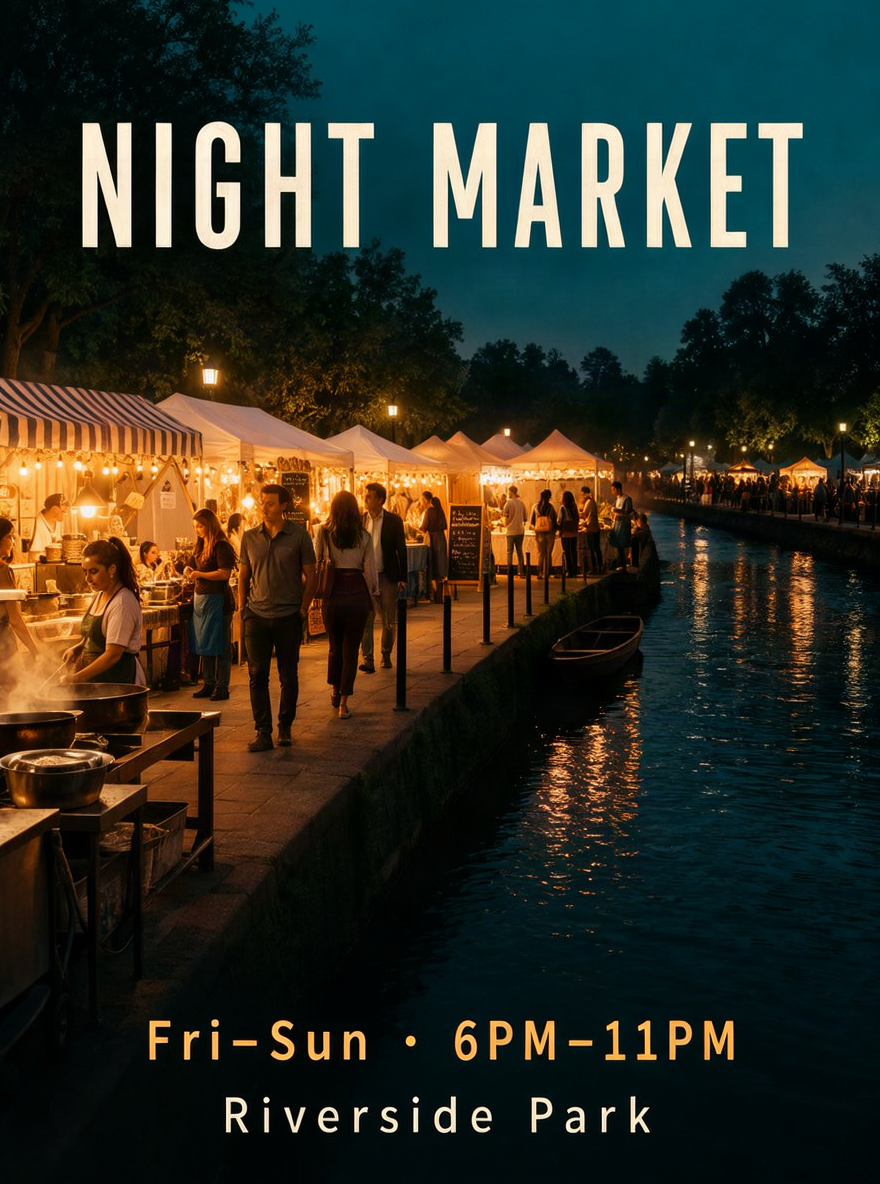
| Night-market poster | No text issues found | No text issues found | Title, time and place read in order; warm stalls and the river create a sense of place |
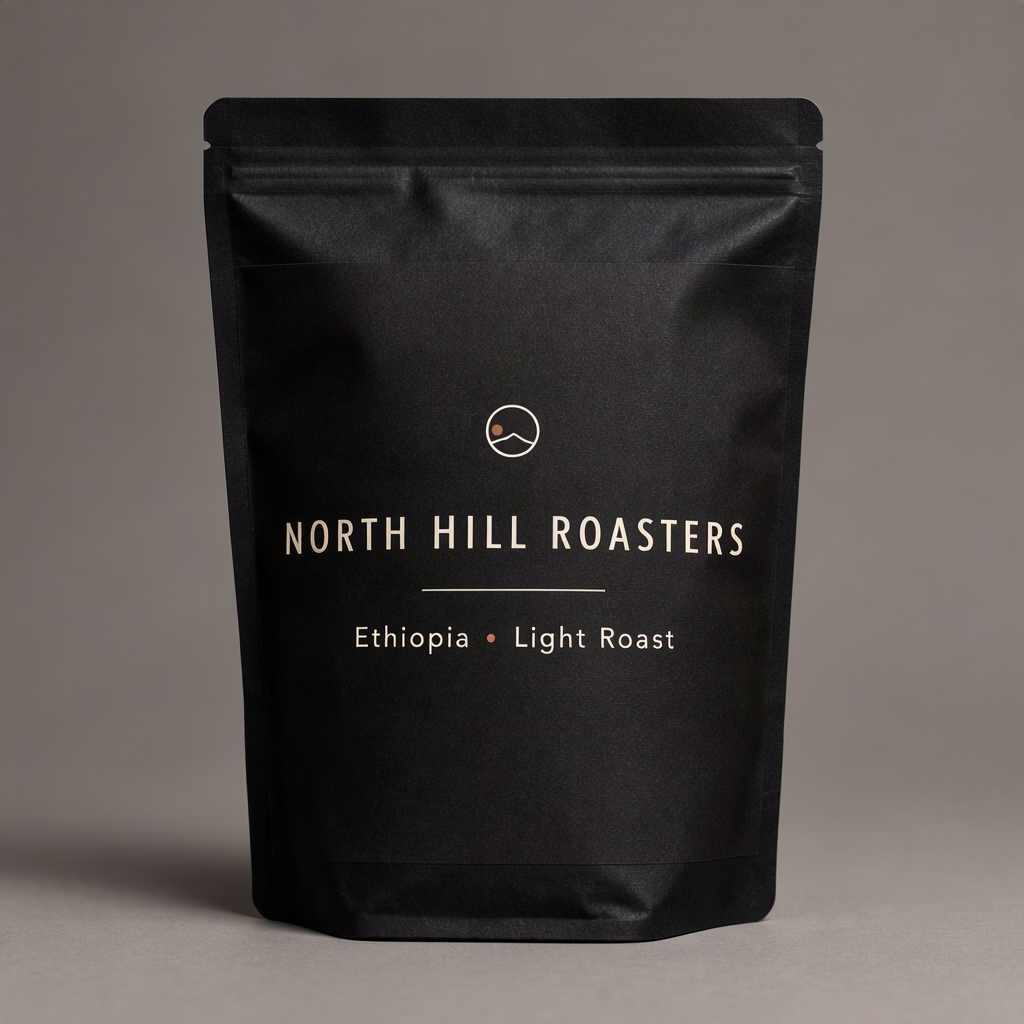
| Coffee packaging | No text issues found | No text issues found | A single-line uppercase brand name works with the mark and origin details as one package |
| Book cover | Extra text resembling an author credit | No text issues found | A deeper blue-grey background separates the title from the scenery |
| Social graphic | Large areas of garbled text | Auto-written copy was readable | Clear hierarchy between headline and supporting copy |
| Four-panel comic | Garbled dialogue | Readable | Story, characters and dialogue read as a continuous sequence |
| Anime scene | Usable | Usable | Clear subject in a complete setting (no required text) |
| Portrait photo | Usable | Usable | Realistic subject in a photographic style (no required text) |
The first two columns come from the same comparison round. The third column shows samples selected after several rounds of refinement. They show what is achievable and are not a like-for-like win rate.
One thing to watch: automatic expansion can add text you didn’t ask for, such as an extra title on the menu. Even when it is readable, check that it is what you want.
Menus: from readable to well organized
| Short prompt | Automatic expansion | Planned menu sample |
|---|---|---|
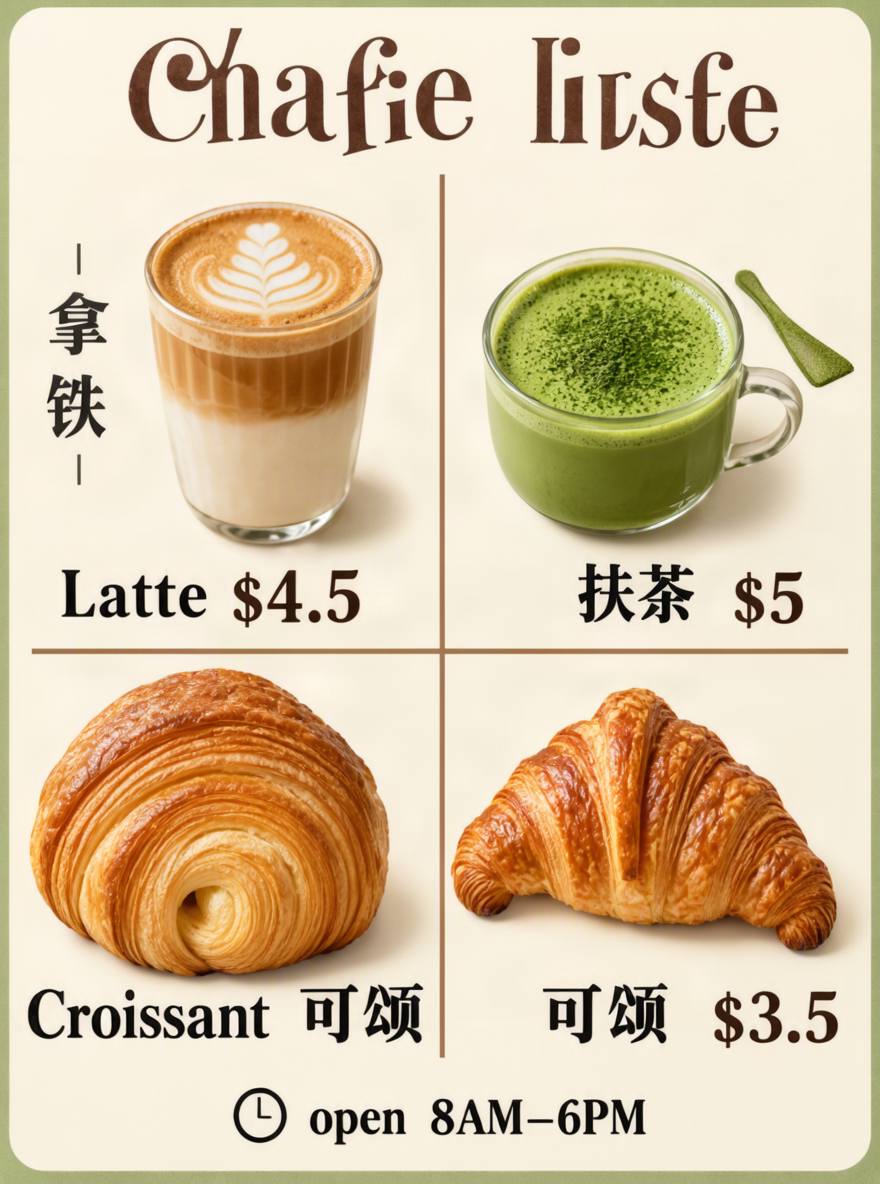 |
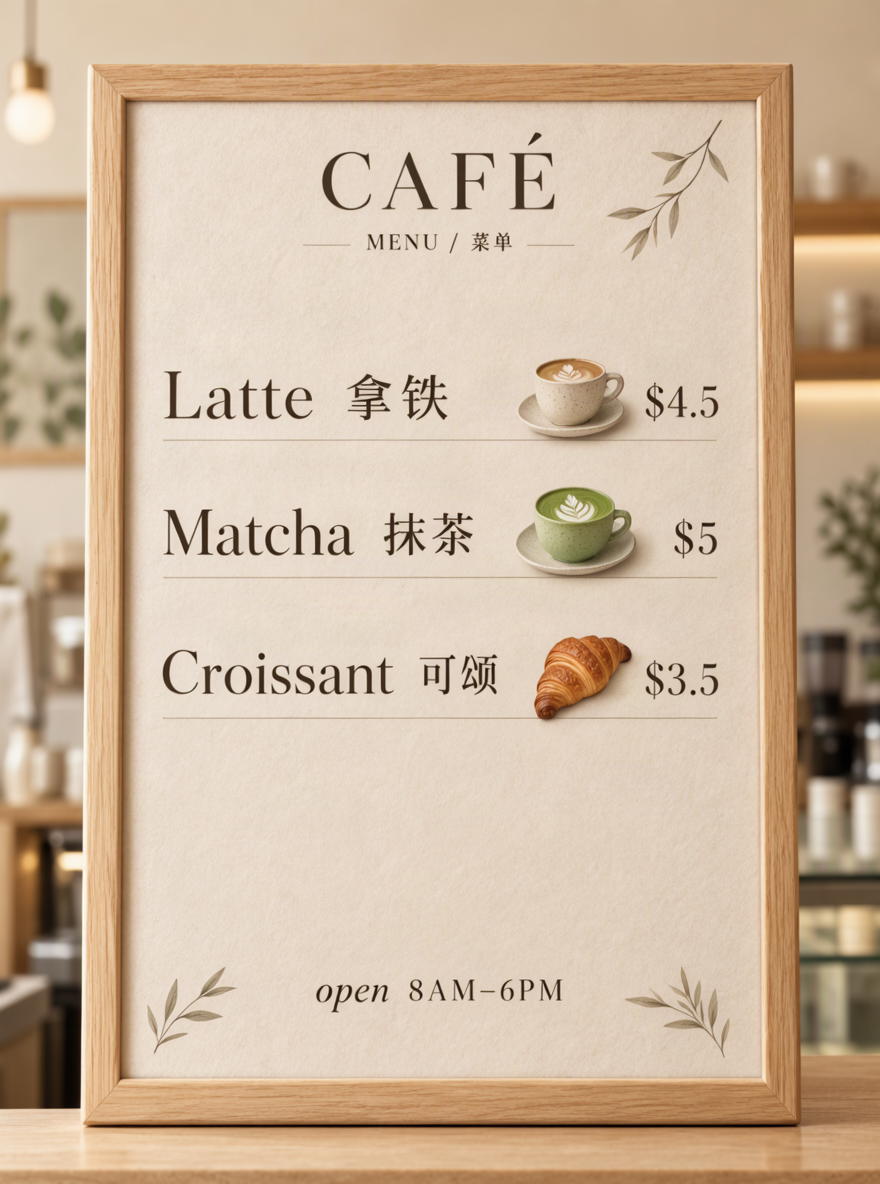 |
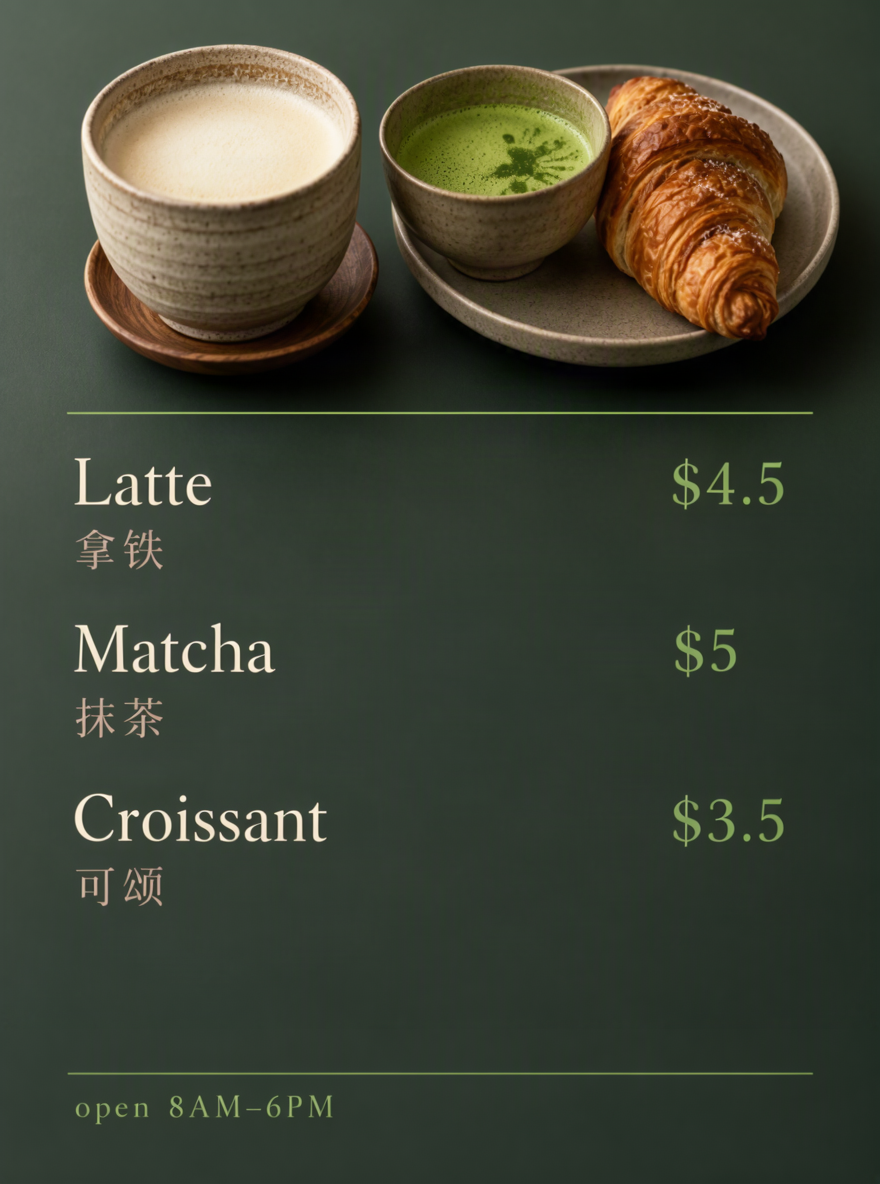 |
All three are 880 × 1184. Open the originals to inspect the small text: short prompt, automatic expansion, planned sample.
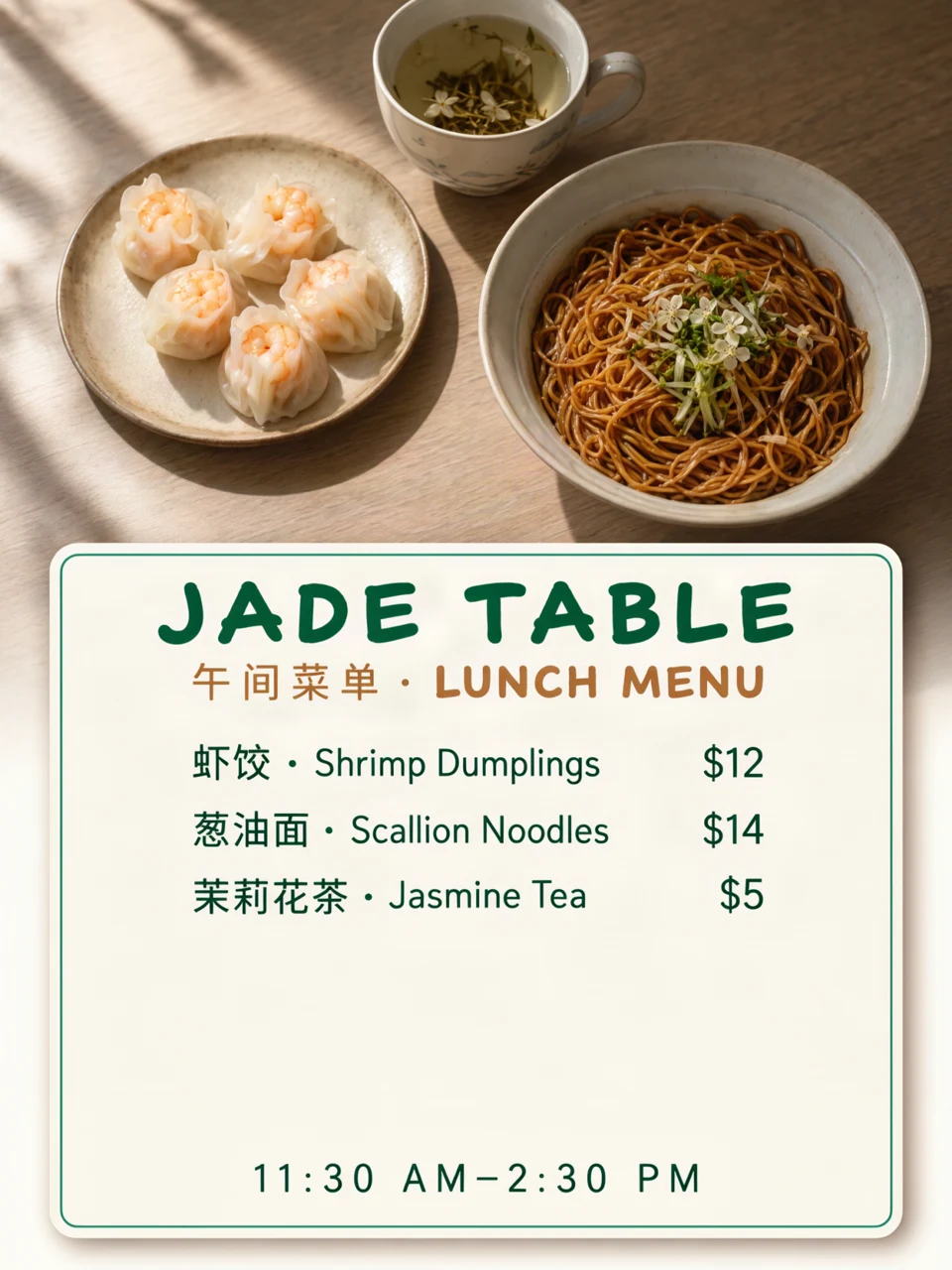
The planned sample uses color and letterforms to separate English item names, Chinese descriptions and prices, and its clearer food photography makes the menu easy to scan. Zoomed in, some small text is still thin, so check it at actual size before printing.
Posters, packaging and covers: what exactly gets better?
| Scene | First version | Refined |
|---|---|---|
| Night-market poster | 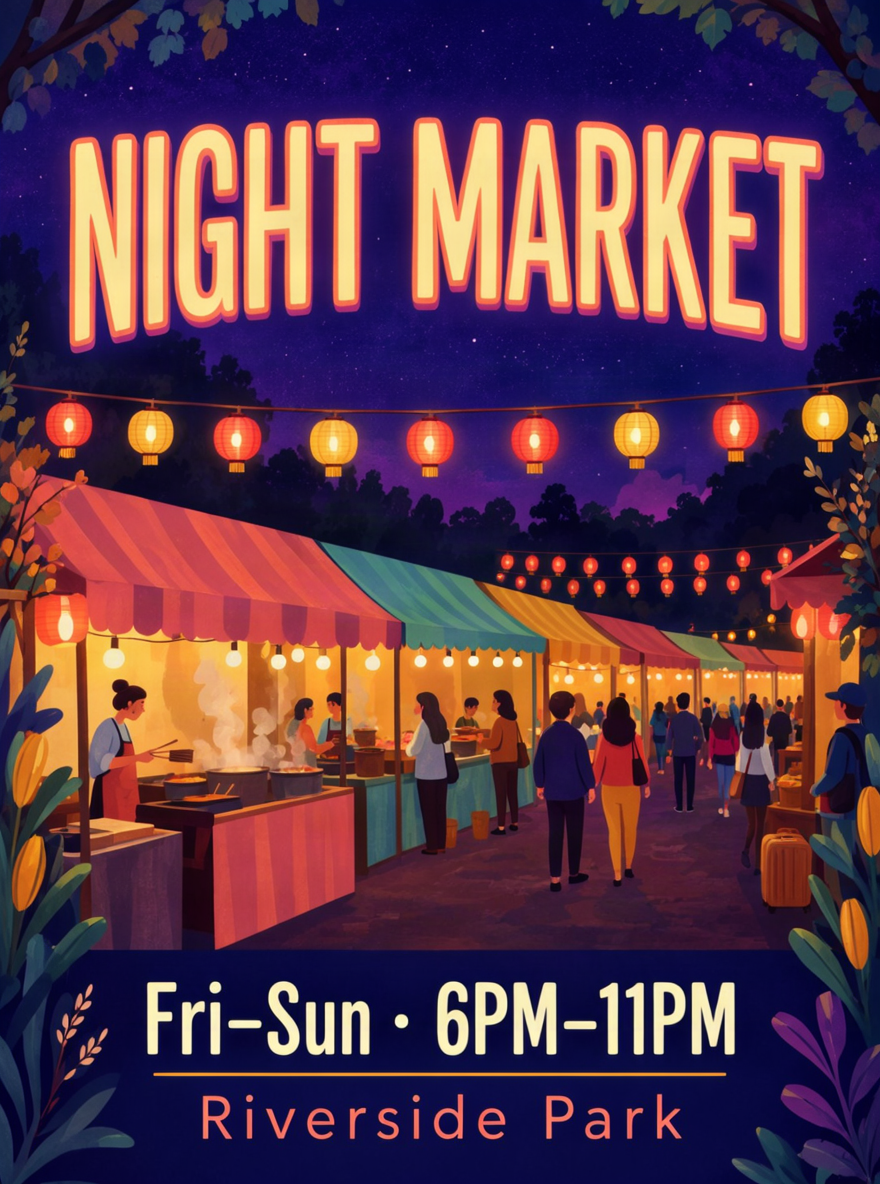 |
 |
| Coffee packaging | 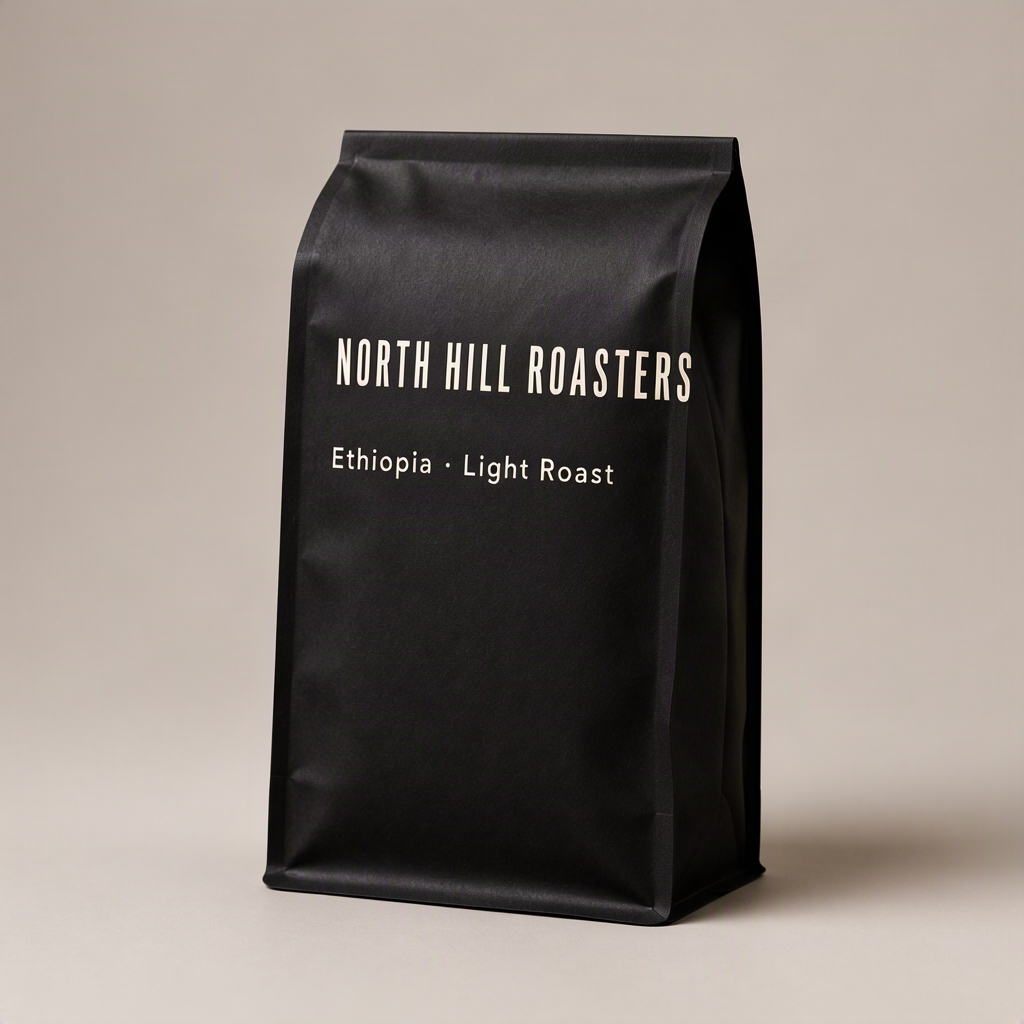 |
 |
| Book cover | 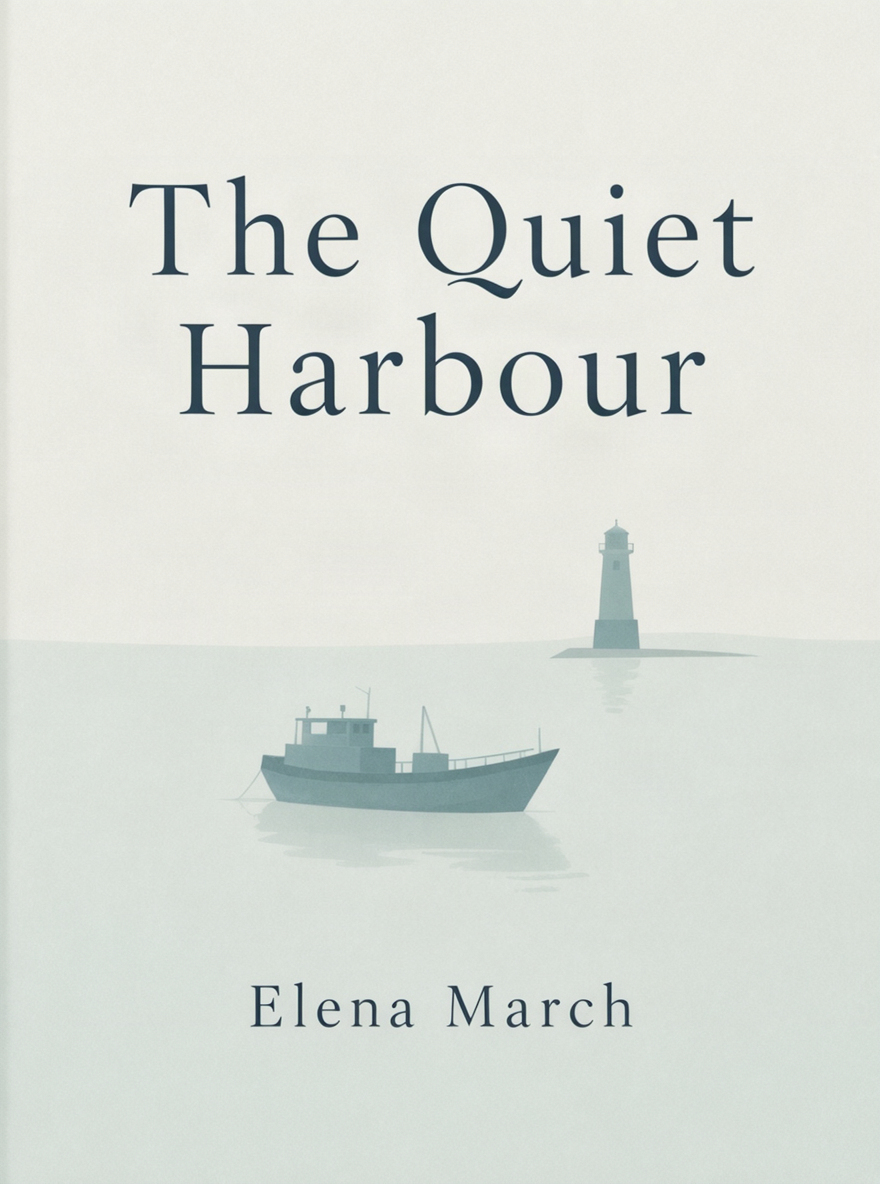 |
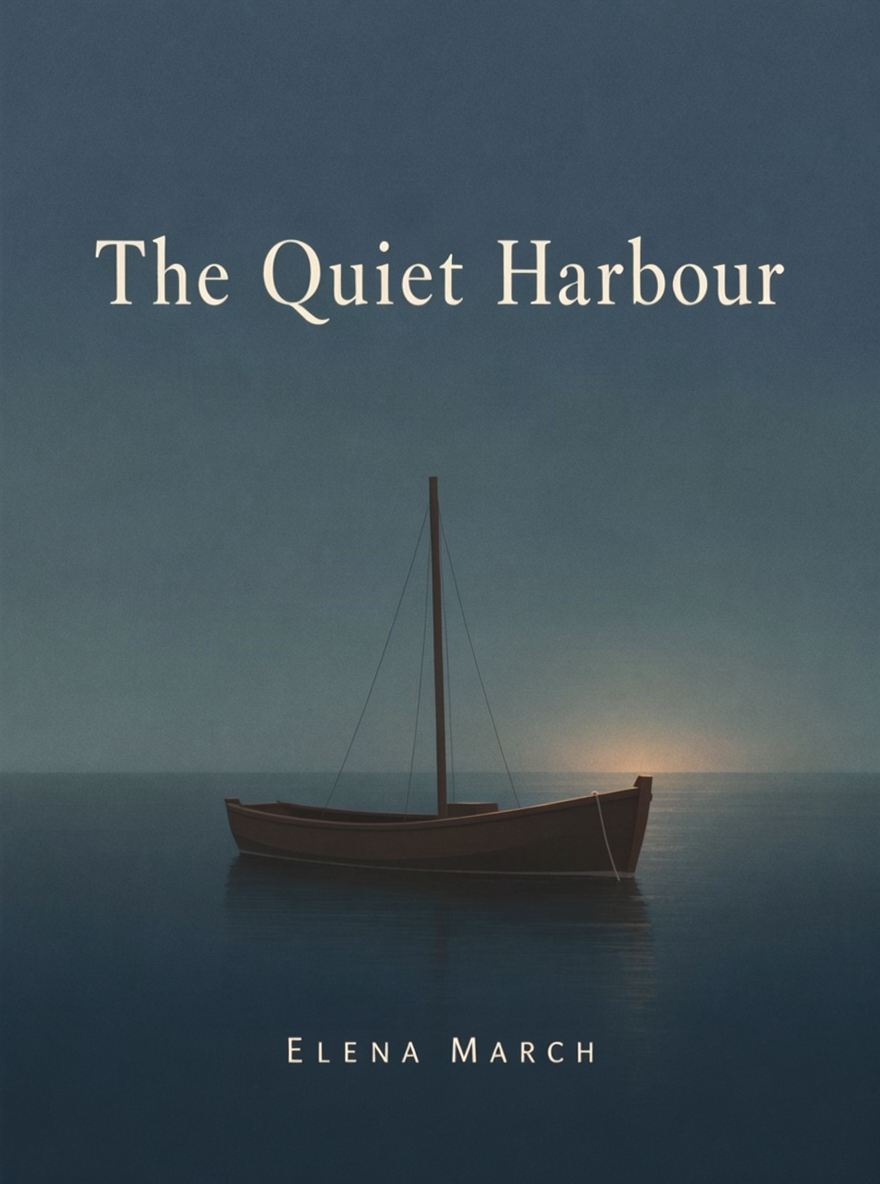 |
Click an image to view the original. The poster and cover are 880 × 1184; the packaging is 1024 × 1024. Each pair has the same size, so the difference comes from design, not more pixels.
| Scene | What improved | Check before use |
|---|---|---|
| Night-market poster | Title, time and place read in order; text and scene feel like one piece | Date and location; small-text contrast at display size |
| Coffee packaging | Keeps the requested matte black bag; NORTH HILL ROASTERS, the mark and origin details look like one brand | Spelling, letter height and spacing (slight unevenness remained here) |
| Book cover | Deeper blue-grey tones; clearer separation between title and background | Whether the title and author line stay legible at thumbnail size |
Correct words are only the first step; letterforms, color and imagery together decide whether an image is usable. Also remember that naming a typeface in a prompt only asks the model to imitate its style. No real font file is loaded.
Will generating several design directions at once give you a better pick?
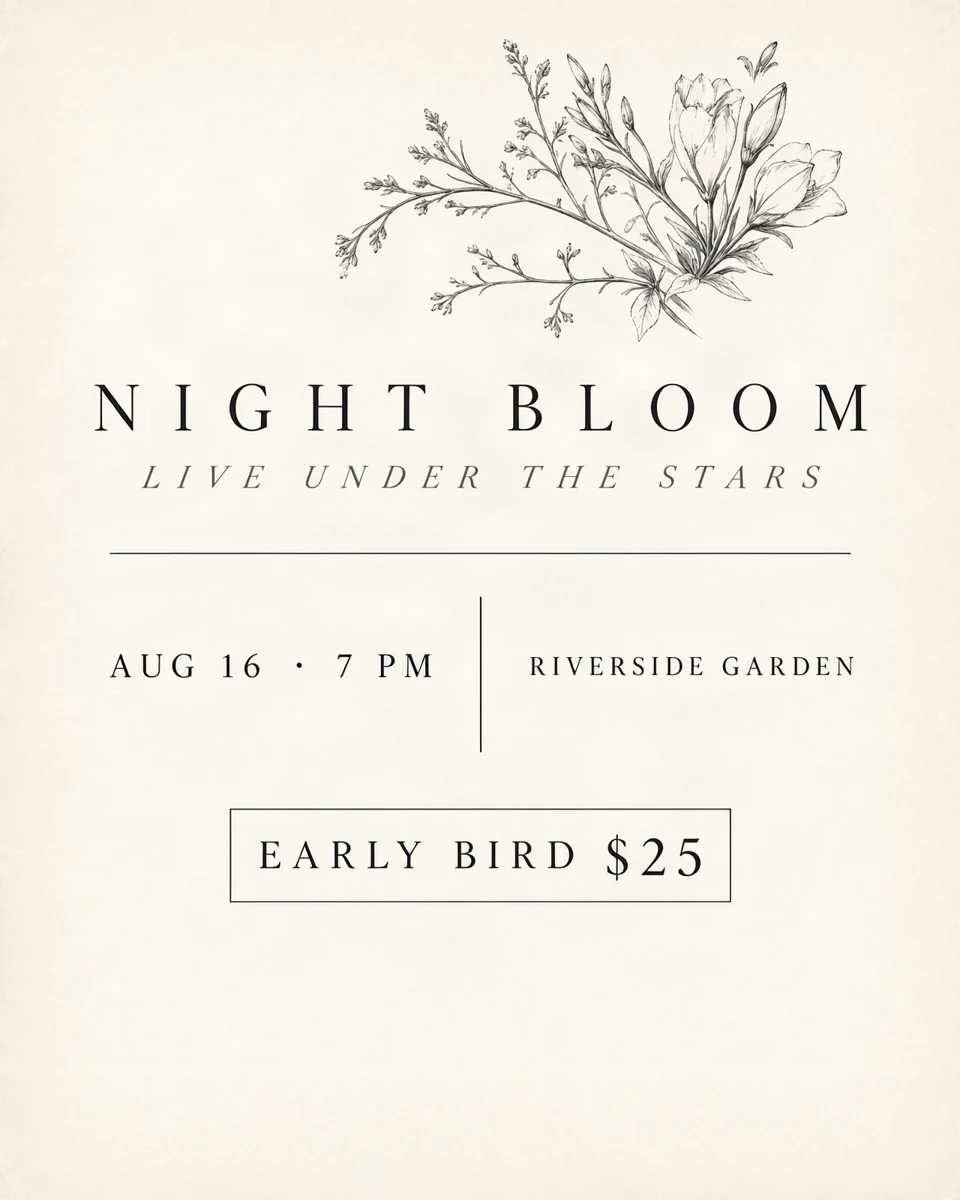
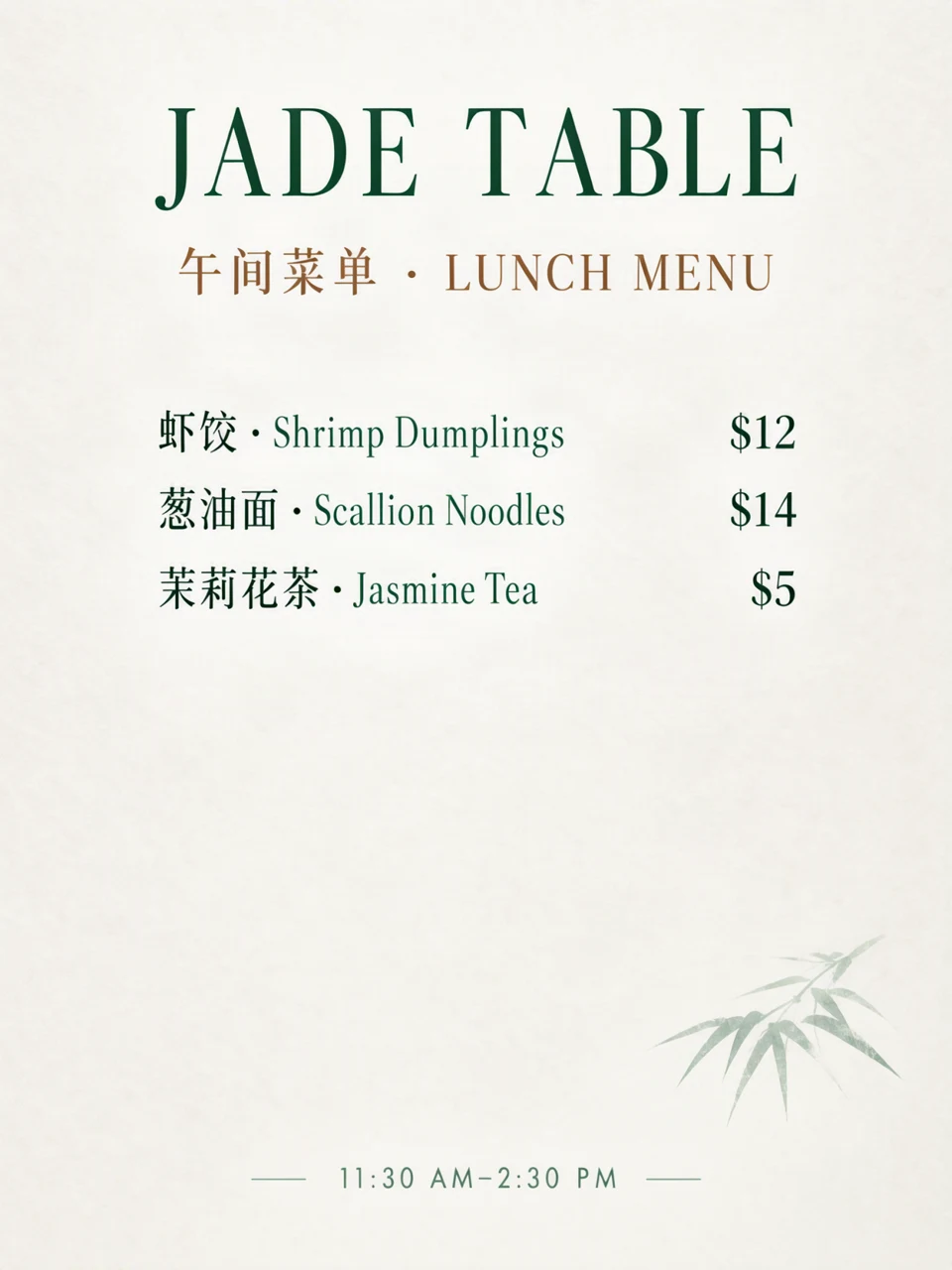
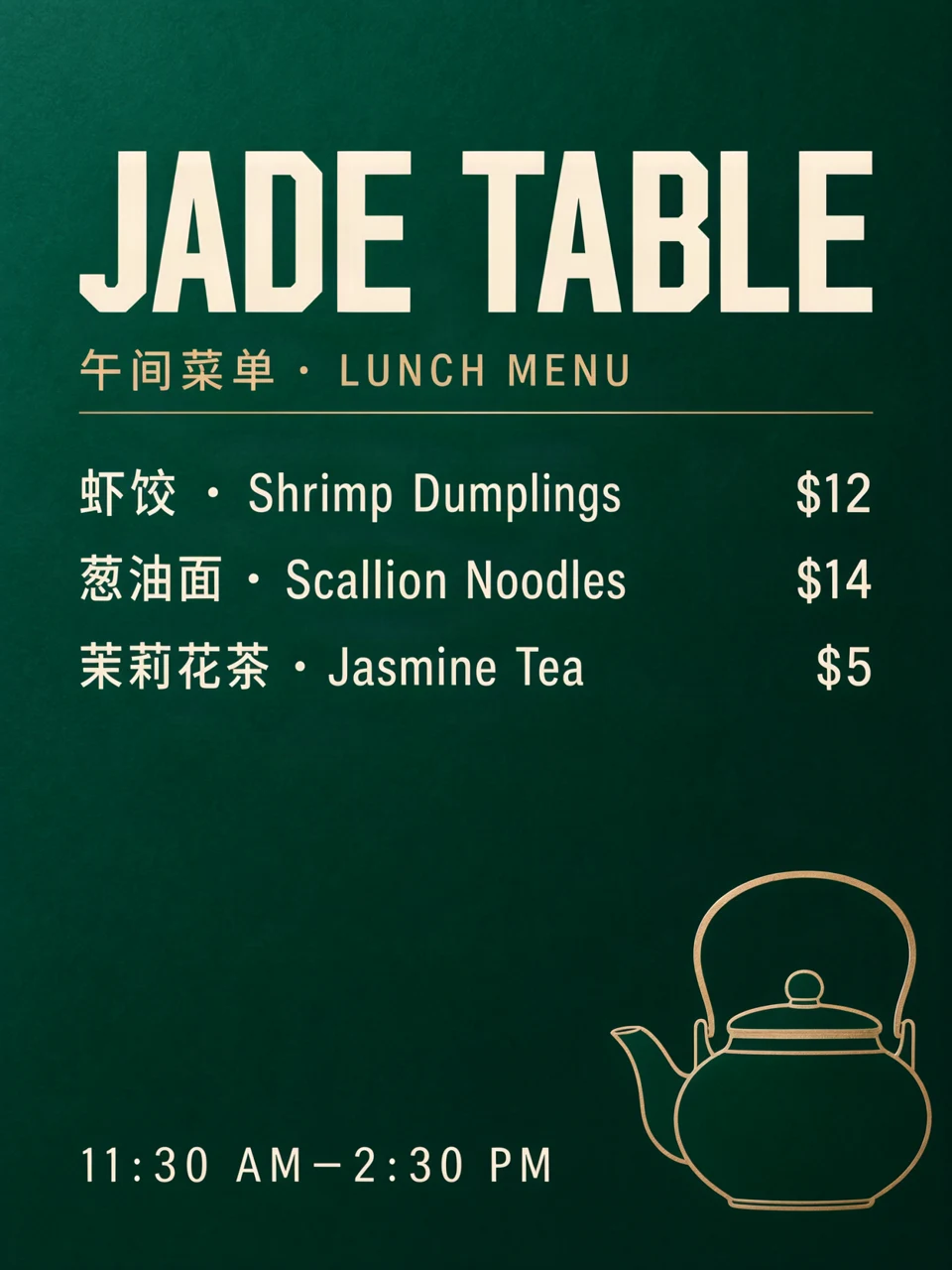
Not necessarily. We had the same request planned in three different directions and generated each one, testing a music poster (four rounds, 12 images) and a bilingual menu (3 images).
| Scene | Automatic expansion | Direction 1 | Direction 2 | Direction 3 |
|---|---|---|---|---|
| Music poster | 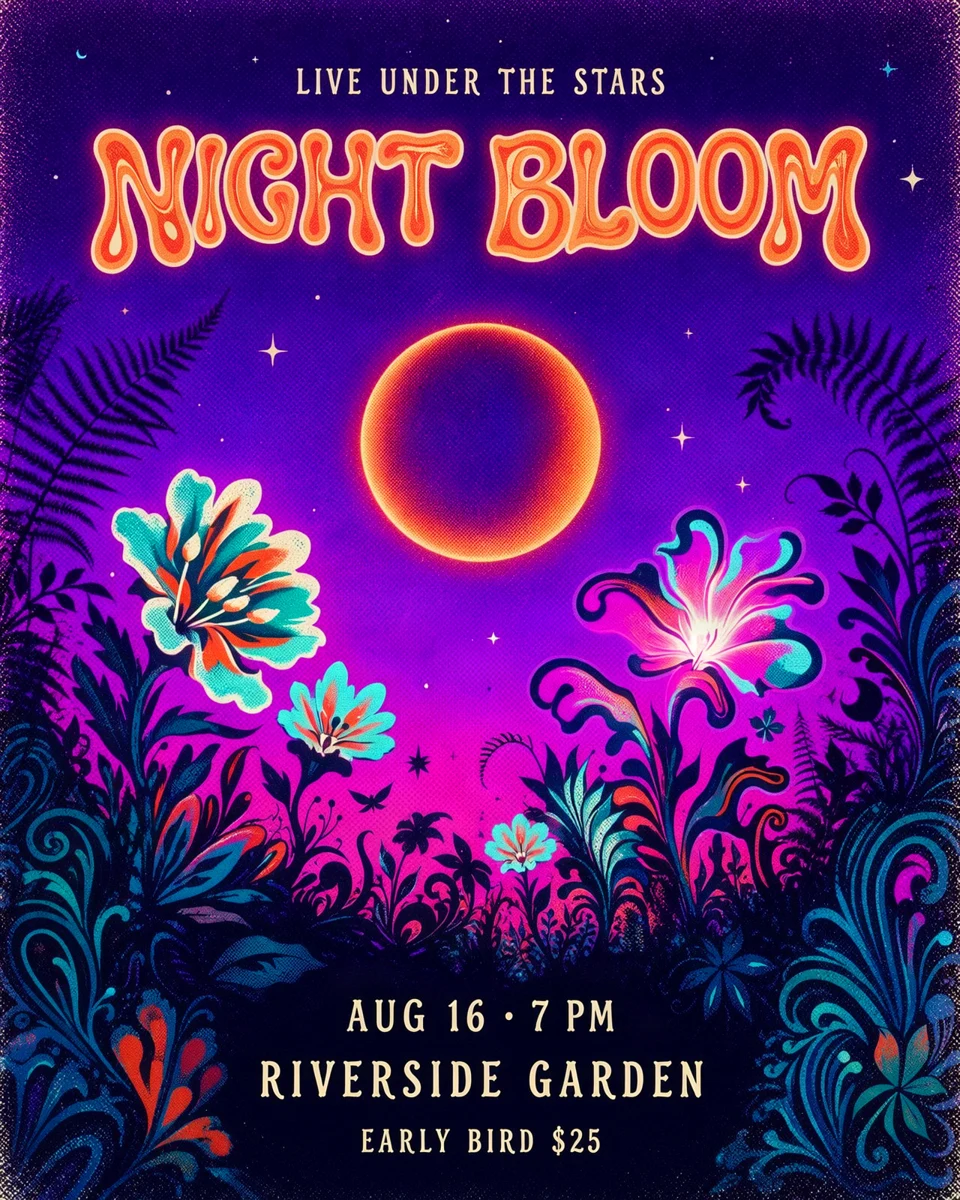 |
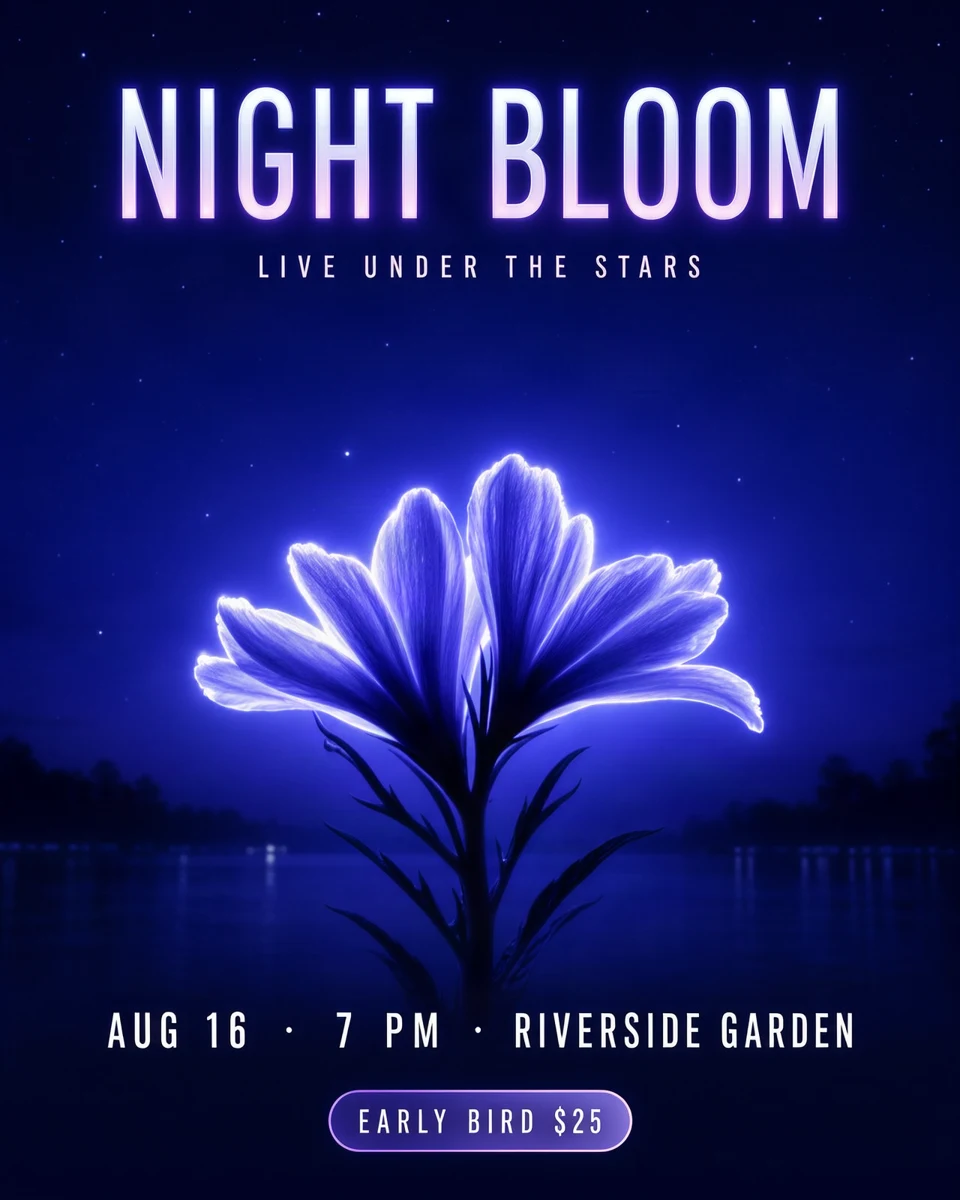 |
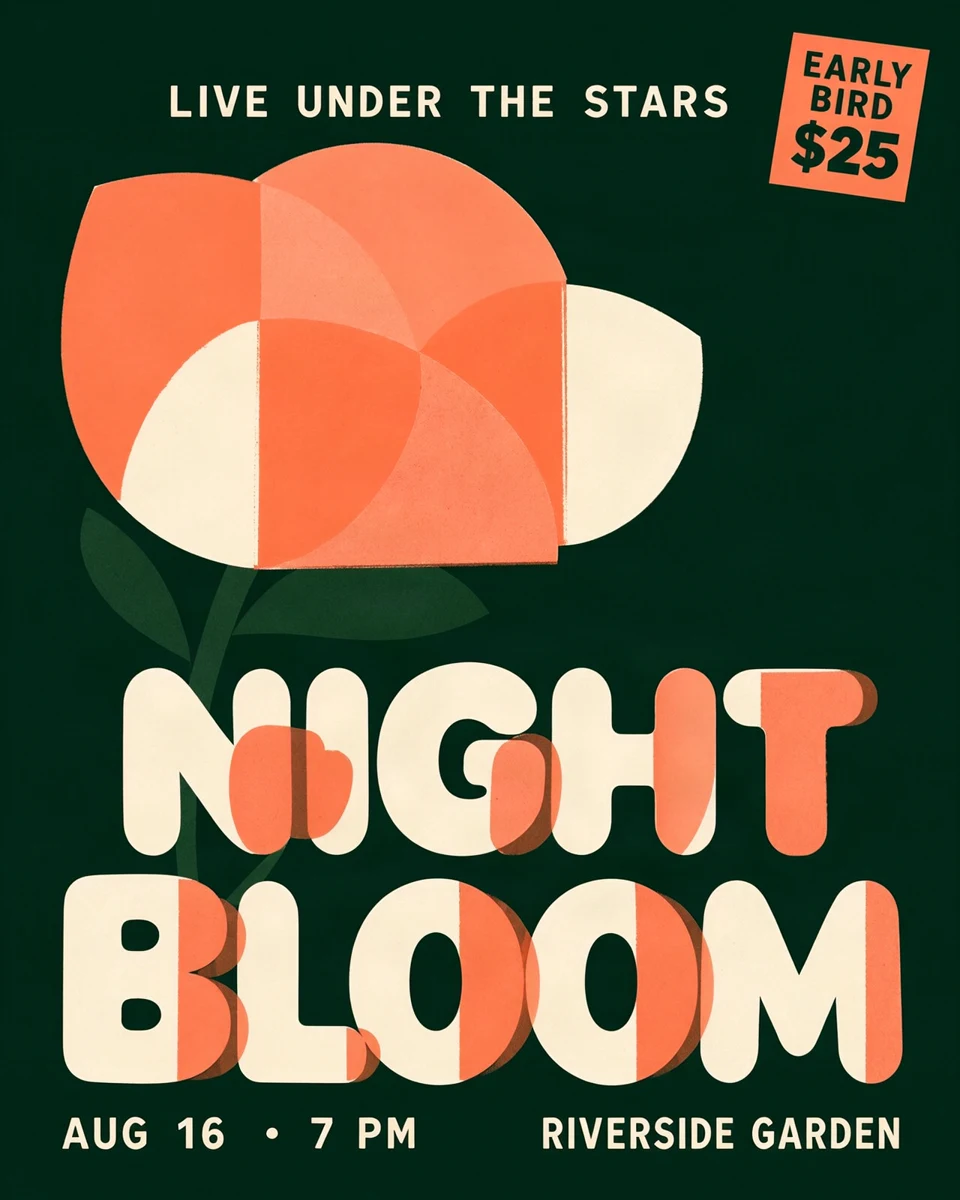 |
 |
| Bilingual menu | 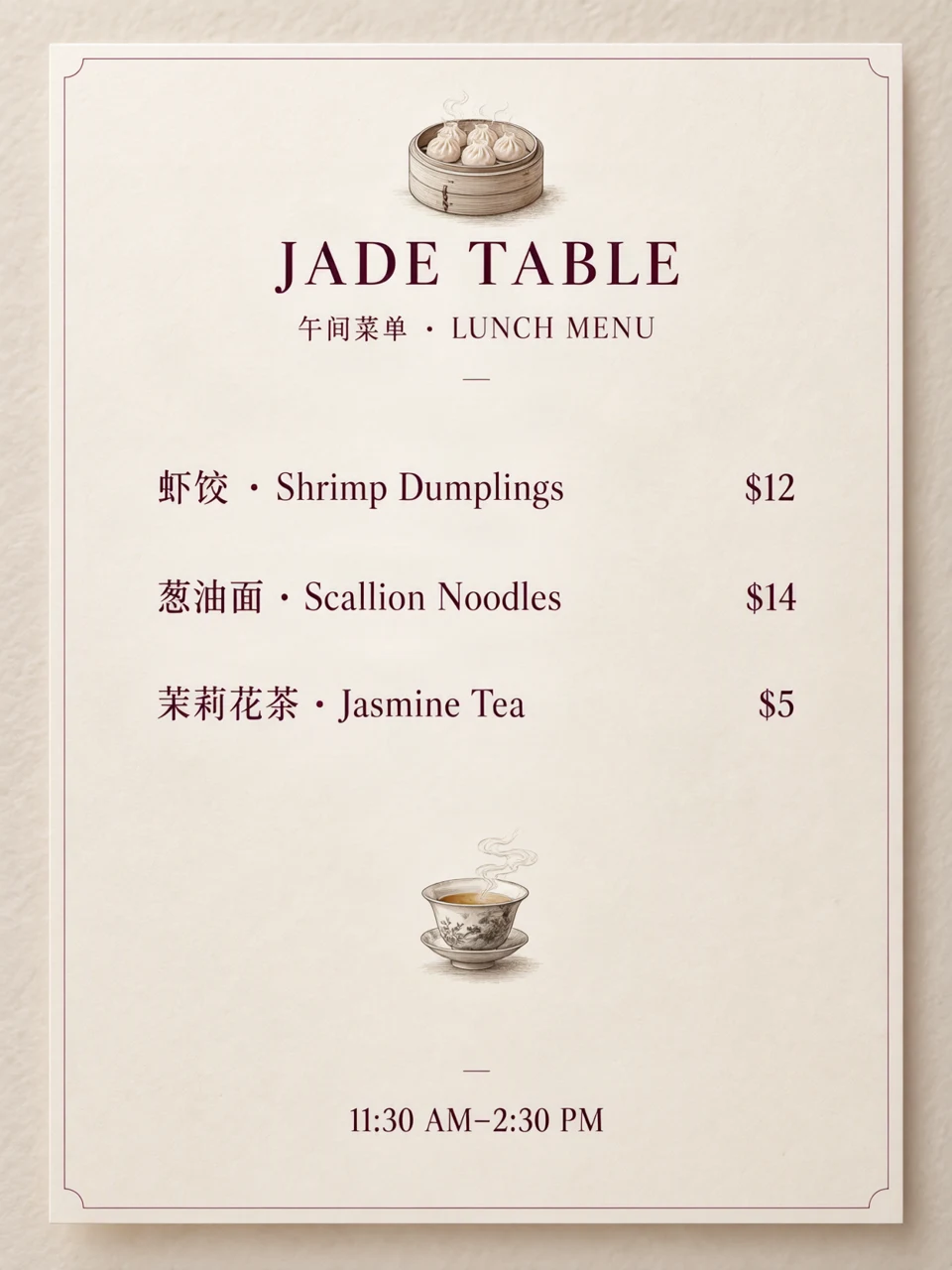 |
 |
 |
 |
| What you might expect | What we saw |
|---|---|
| Three clearly different styles | Composition and lighting did vary, but all three menu directions stayed green |
| At least one standout | Direction 2 of the music poster had a bolder two-line overprinted title; the others were conventional |
| Better overall than a single image | Color and polish didn’t necessarily beat the automatic-expansion image |
Tip: Multiple directions are good for ideas. If the first image is already close, editing its text and layout is usually faster, and uses fewer credits, than generating three more.
How detailed does a prompt need to be for more designed lettering?
Not very. We generated the same music poster in two rounds: one spelled out stroke contrast, counters and terminals; the other described the title’s overall shape in a single sentence.
| Direction | Detailed type specs | One-sentence overall shape |
|---|---|---|
| Direction 1 | 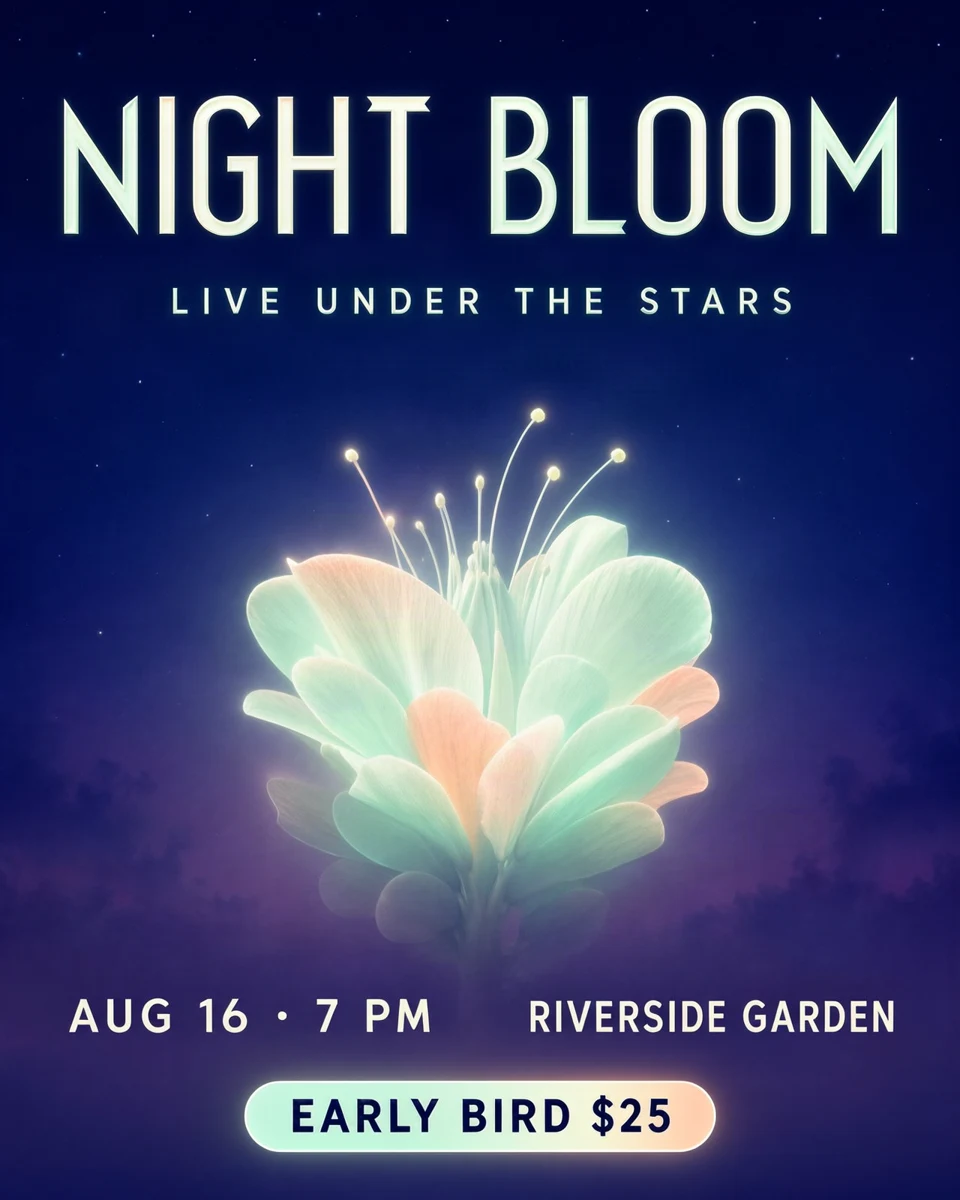 |
|
| Direction 2 | 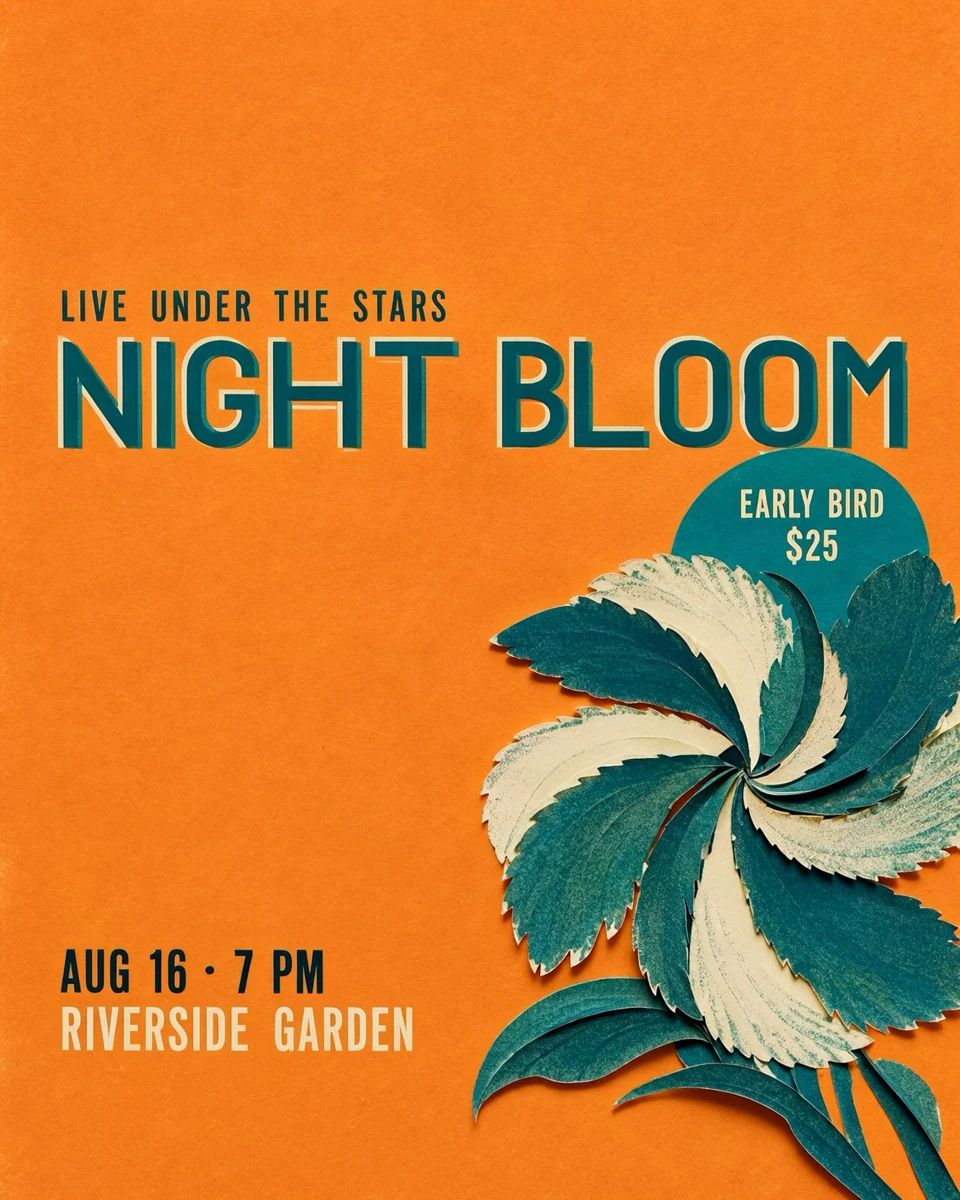 |
|
| Direction 3 | 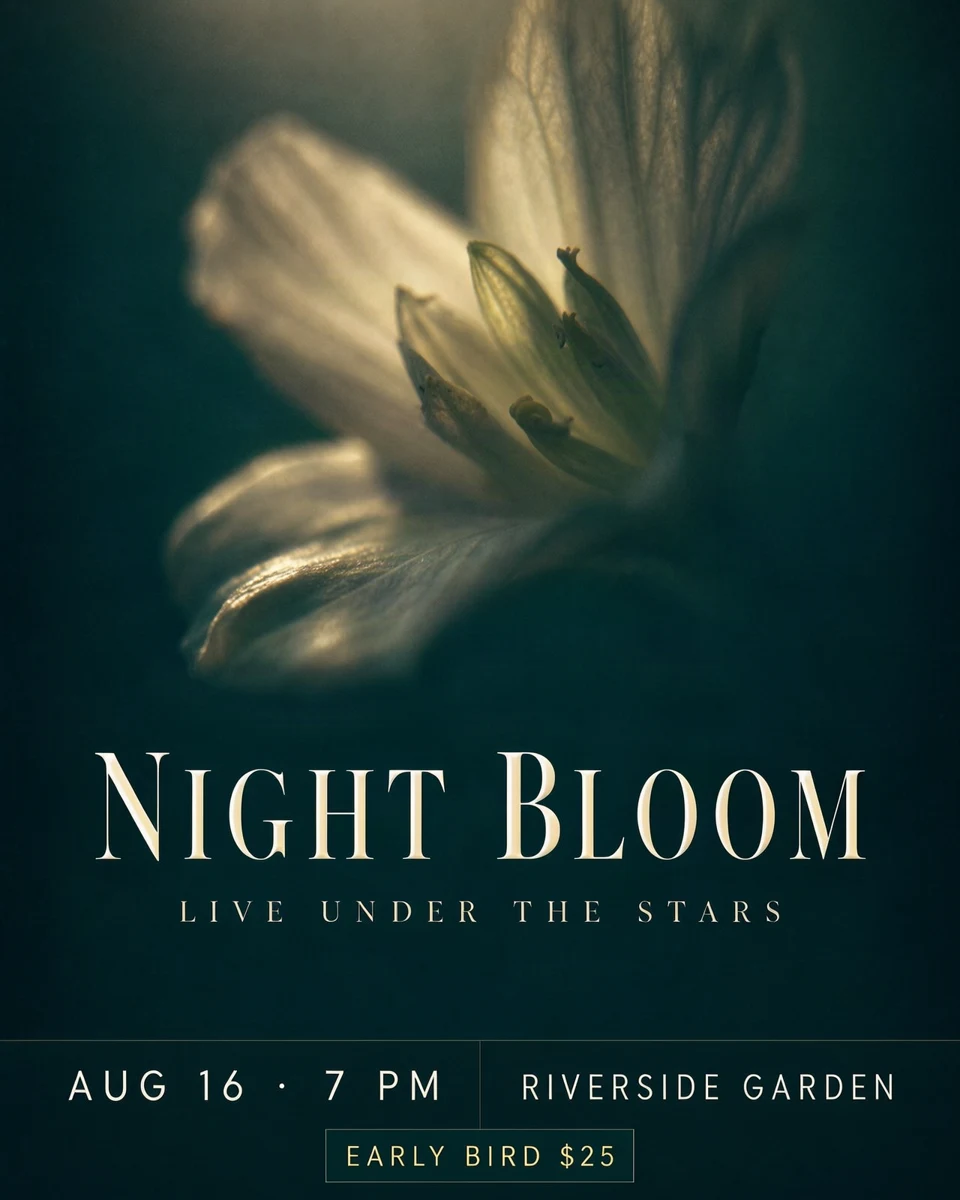 |
|
Click to enlarge. Color, imagery and layout also changed between rounds, so not every difference comes from prompt length.
More detail did not mean better results: some titles were still plain type, and wide letterforms got squeezed when their text box was too narrow. The one-sentence description gave Direction 2 a much more distinctive title, but it didn’t improve every image.
Practical tips:
- Describe the feel of the title in one sentence, for example “rounded heavy letters, two lines slightly offset and overprinted.” Skip the type specs.
- Give wide letterforms or long titles enough width, or break them onto two lines.
- Make room for any text you add. When you remove text, remove its description too, or the old words may come back.
- Text can land away from where you expected. After generating, check the positions first; if something is off, adjust the text box on the image and generate again.
Why is adding a line of text to an existing image so hard?
On the first generation, automatic expansion only makes room for the text you wrote at that point. Adding a sentence to the prompt afterwards does not guarantee it will appear in the image.
| What you want | What we saw | What to do |
|---|---|---|
| Add a line to a poster | Even with a text box and the line repeated in the prompt, some results left it out | Check the text word by word; regenerate if it’s missing |
| Make the new text fit the design | Successful results appeared when both the new text’s look and the overall image description were adjusted | Say how it relates to the image, not just what to add, e.g. “below the title, in the same thin gold type” |
| Keep the original style and details | Changing the cover title also changed the boat’s outline; a fixed seed still redraws the whole image | Keeping the layout is not the same as keeping the pixels; check the whole image after editing |
We tested only this kind of task here and did not compare success rates with other tools. For now, there’s no guarantee that text will never be dropped or that the style will stay unchanged.
You only want to change a title or price. Which method should you use?
If you’re happy with the whole image and only need to change a title or price, a dedicated image-editing model is usually the better fit. We compared two sets of edits: changing the cover title The Quiet Harbour to The Silent Bay, and on the menu changing “抹茶” (matcha) to “焙茶” (roasted tea) and $5 to $5.5.
| Method | Cover title | Menu text and price | Image and size |
|---|---|---|---|
| MOSS regenerate with fixed seed | Correct | Not tested | Size kept; boat outline changed |
| FLUX 3 Edit | Correct | Correct | Size kept; slight color shift on the cover |
| Nano Banana 2 | Correct | Correct | Output became 892 × 1200 instead of the original 880 × 1184 |
| Seedream 5 Flash Edit | Correct | Correct | Size kept; slightly brighter overall |
| Before | After regenerating with a fixed seed |
|---|---|
|
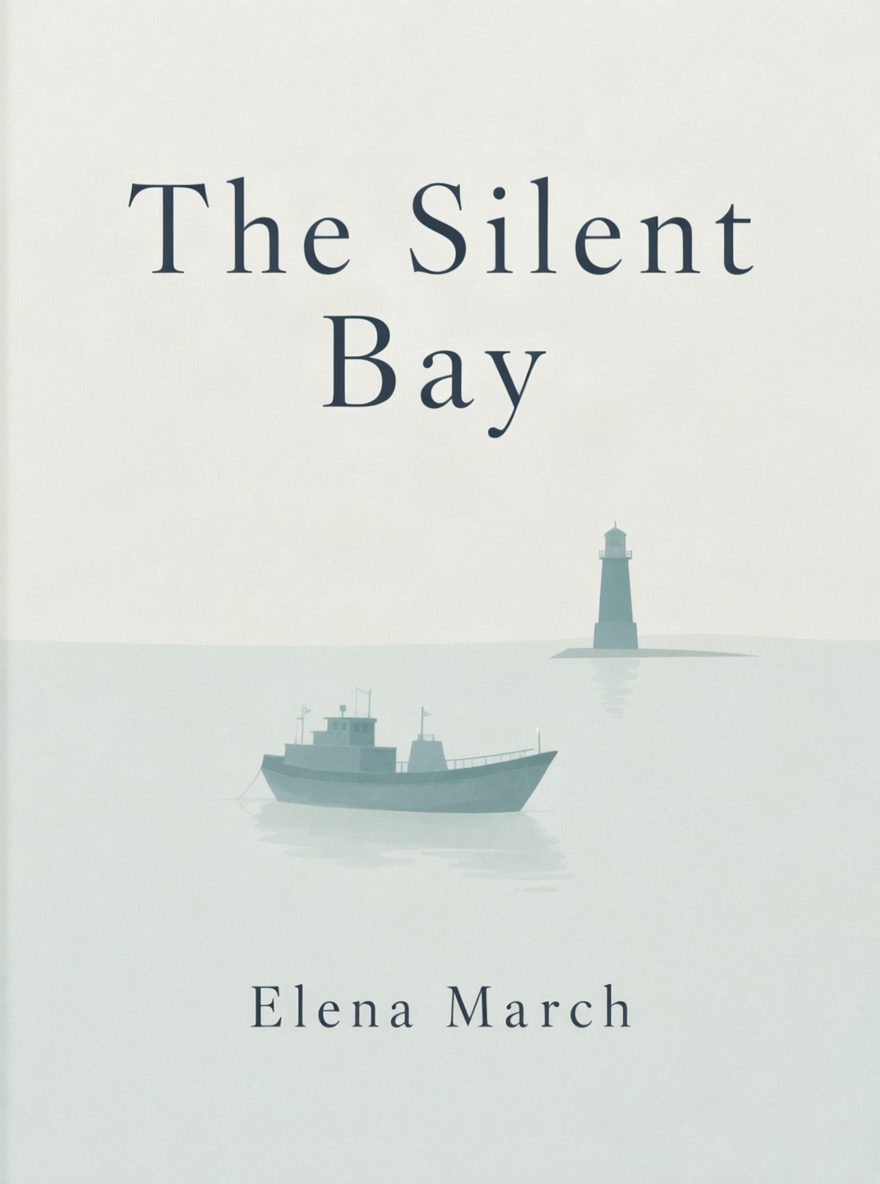 |
Both 880 × 1184, seed 7. The title changed correctly, but so did the boat’s outline.
How long does it take, and what are the side effects?
Using the same product poster with a price, we tested changing the price, swapping in long copy, swapping in Chinese text and deleting text. Each method ran each edit twice, always starting from the original image.
| Method | Runs | Median wait | Shortest–longest | Side effects we saw |
|---|---|---|---|---|
| MOSS regenerate with fixed seed | 8 | 14.9 s | 13.5–23.9 s | Deleting text changed the base, water flow and bottle details |
| Seedream 5 Flash Edit | 8 | 16.0 s | 14.5–22.3 s | 3 times changed an untouched $38 to $88 |
| FLUX 3 Edit | 8 | 33.0 s | 30.6–84.8 s | One price edit also changed lighting and background; long copy overflowed its text box |
Wait time covers submitting, queuing, checking for the result and downloading. It is the total time from request to image, not pure generation time, and network and server queues affect it.
All three methods made the requested change, but with different speeds and side effects. Whichever method you use, check the prices, brand names and background you didn’t ask to change before saving. Seedream turning $38 into $88 is exactly the kind of problem to look for.
Try it: get the text right on the first try
- Start with the purpose and scene, for example “a bilingual menu for a coffee shop, portrait.”
- Put every required title, name, price, date or line of dialogue in quotes, exactly as written.
- After generating, check proper names, numbers and dates first, then the type hierarchy and imagery.
- To change text or its position, select the text box on the image and edit it; then check the whole image.
- Before using it for real, review it at its actual display or print size.
Try it on the MOSS-Image AI homepage. New here? Start with the getting-started guide, or read the prompt guide for more on wording and layout.
Methods and limitations
As of October 26, 2026, this series has 131 saved original images, including results we didn’t use. Web copies, thumbnails and collages are not counted twice. The images serve different test purposes and are not 131 independent accuracy trials.
| Test | Original images |
|---|---|
| Output sizes | 4 |
| Three-approach comparison (8 scenes × 3 approaches) | 24 |
| Design, typography and multi-direction samples | 54 |
| Moving text boxes, changing and adding text | 25 |
| Image-editing comparison (4 edits × 3 methods × 2 runs) | 24 |
| Total | 131 |
- Sizes and settings: In the comparison, the comic and packaging were 1024 × 1024, the anime scene 1360 × 768, and the rest 880 × 1184. In the multi-direction tests, the music poster was 1280 × 1600 (seed 260007) and the menu 1248 × 1664 (seed 260006), with steps and guidance held constant within each group.
- How results were judged: By hand, without character-level OCR scoring, blind user ratings or repeated runs across seeds. Every image shown is a generated result with no manual text fixes.
- How samples were chosen: The “planned” and “refined” images were selected from several rounds. They are not an independent test set; they show what is achievable, not what happens every time.
- More than one variable: Design, copy details and layout often changed together, so no single setting can take credit for an improvement.
- Coverage: The anime and portrait scenes have no required text and say nothing about text accuracy. Typography tests covered only the menu, packaging and poster. Close inspection still found thin small text on the menu, slightly uneven letters on the packaging and a shortened brand name in the comic.
- Reproducibility: The provider’s default settings and backend versions may change, so future results may differ.
Use these results to choose how to write prompts and make edits, not as a promise that every attempt will succeed.
Questions
Can a short prompt get the text right?
For simple posters and packaging, usually yes. Text-heavy images such as menus, social graphics and comic dialogue often came out garbled or with extra words from a short prompt. With automatic expansion turned on, all of these were readable in our tests.
Do I need to write a long, expert prompt?
No. State the purpose and quote the exact text that must appear. Spelling out stroke contrast, counters and other type details did not make results reliably better.
If I only change a title or price, will the rest of the image change?
It can. Both regenerating and image-editing models may alter areas you did not ask to change, such as other prices, the background or small details. Check the whole image before saving.
Can I use the generated lettering as a brand logo?
We don't recommend it. Lettering in a generated image imitates a style; it is not a real font file. For an exact wordmark or a required typeface, treat the image as a design preview and set the final type in a layout tool.
Turn your idea into an image
Describe your idea, generate an image, then refine the text or layout if needed.